

kbagent Web UI
Run the optional kbagent Web UI — a local browser dashboard for your Keboola projects: browse configurations, monitor jobs, search, and jump into workspaces, served by kbagent serve --ui.
Prefer clicking to typing? kbagent ships an optional Web UI — a local browser dashboard over the same projects and data the CLI manages. It runs on your machine, talks only to your Keboola stacks, and boots already authenticated from your kbagent config.
Start it
Section titled “Start it”The Web UI needs the server extras. Install (or reinstall) kbagent with them, then serve:
uv tool install --force --with 'keboola-cli[server]' 'git+https://github.com/keboola/cli'kbagent serve --uikbagent prints the local URL (default http://127.0.0.1:8001/) and opens it. The browser is authenticated via an HttpOnly cookie — no token in the URL or the page. The server is localhost-only by default.
Dashboard
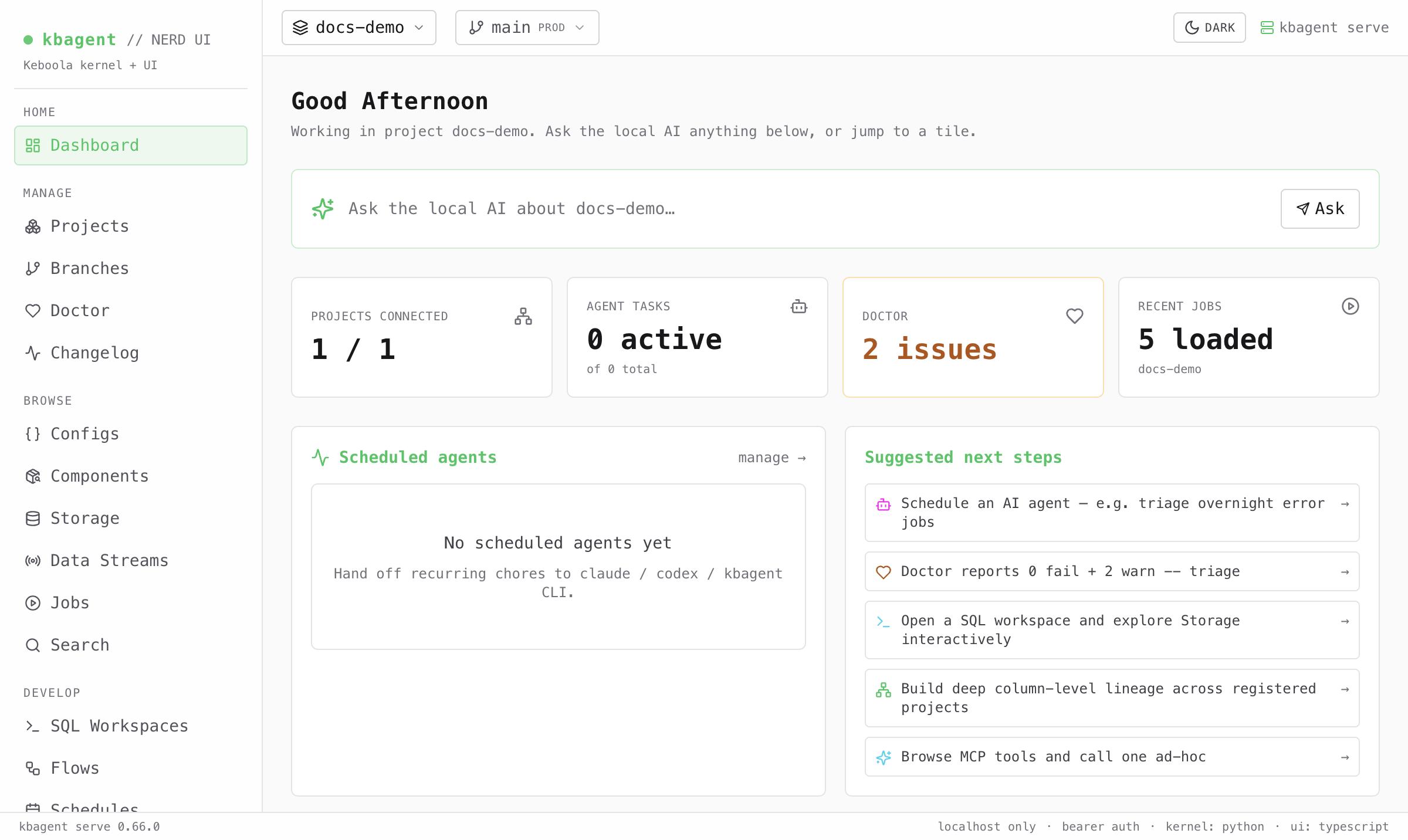
Section titled “Dashboard”The home screen summarizes the active project — connected projects, agent tasks, Doctor issues, recent jobs — with an “ask the local AI” box and suggested next steps. The left rail groups everything the CLI can do: Manage (projects, branches, doctor), Browse (configs, components, storage, jobs, search), Develop (SQL workspaces, flows, schedules, data apps), Insights (lineage, semantic layer), and AI / Tools.
Browse configurations
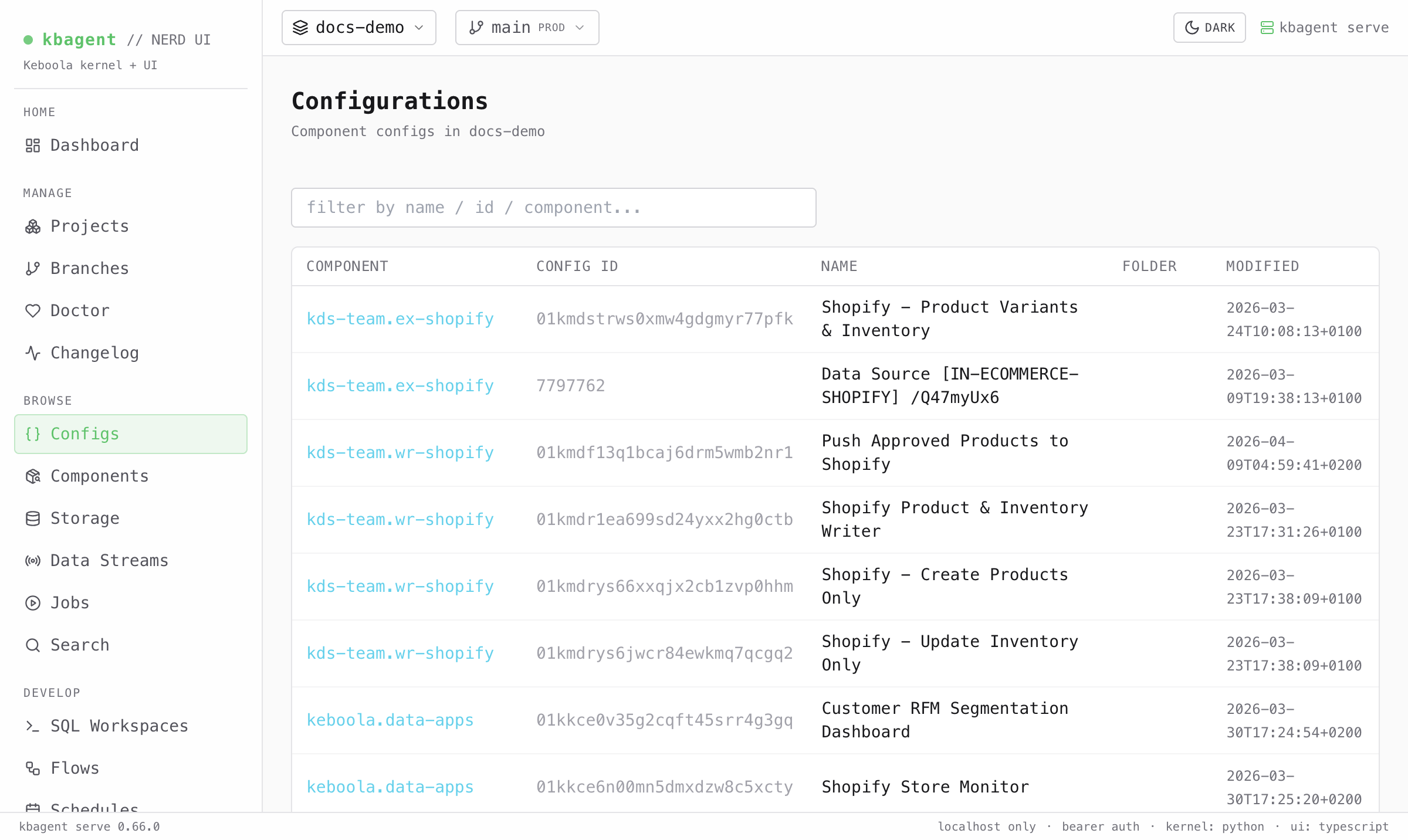
Section titled “Browse configurations”Configs lists every component configuration in the project, filterable by name, ID, or component — the same data as kbagent config list, in a table you can scan and click into.
Monitor jobs
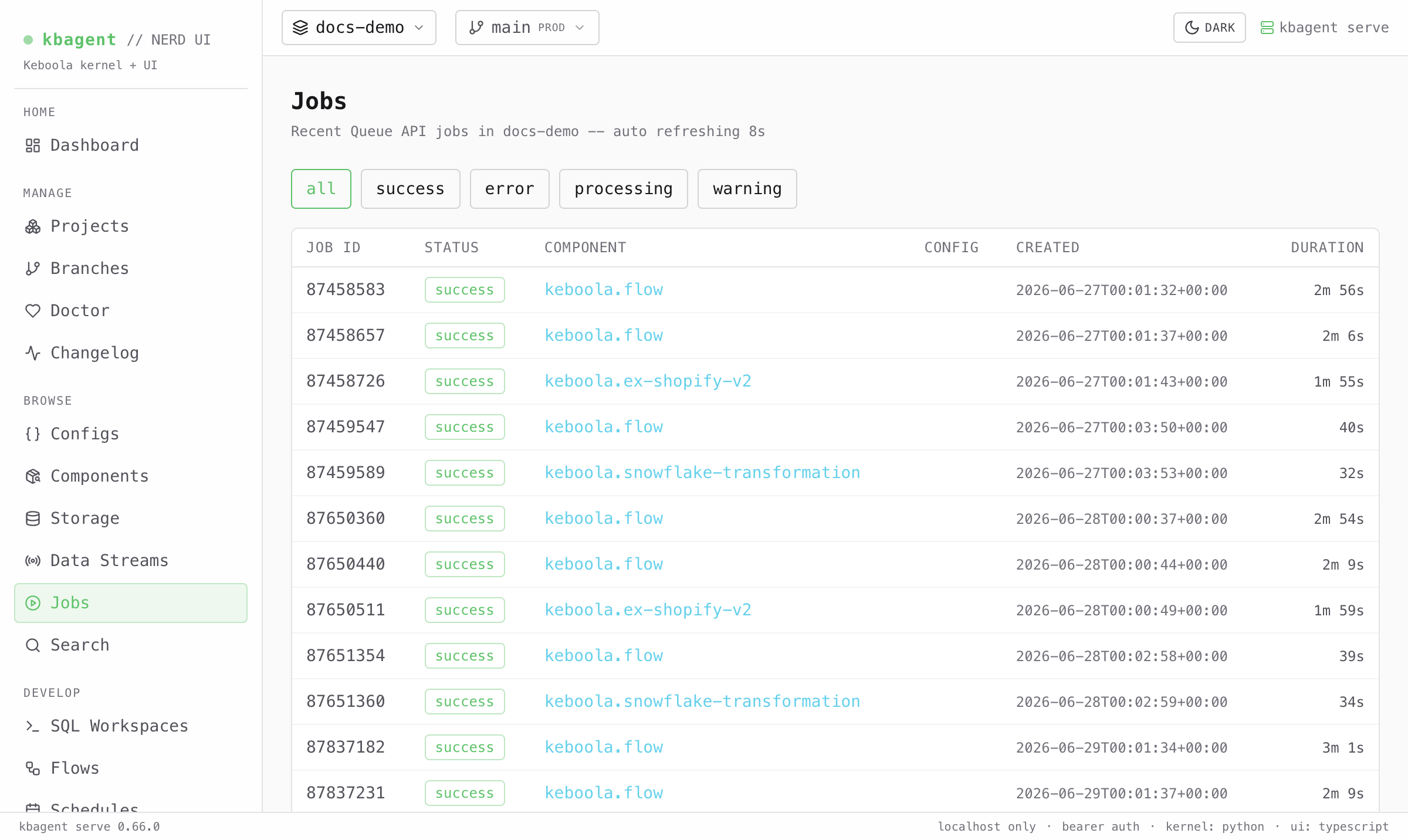
Section titled “Monitor jobs”Jobs shows recent Queue jobs with status badges, auto-refreshing, and filters for success / error / processing / warning — the visual counterpart to kbagent job list.
When to use it
Section titled “When to use it”The Web UI is handy for browsing and monitoring at a glance. For scripting, multi-project operations, GitOps sync, and handing work to an AI agent, use the command line — the two share the same kbagent config, so you can switch freely.
That’s the tour. Jump back to the CLI overview or dive into a how-to guide.